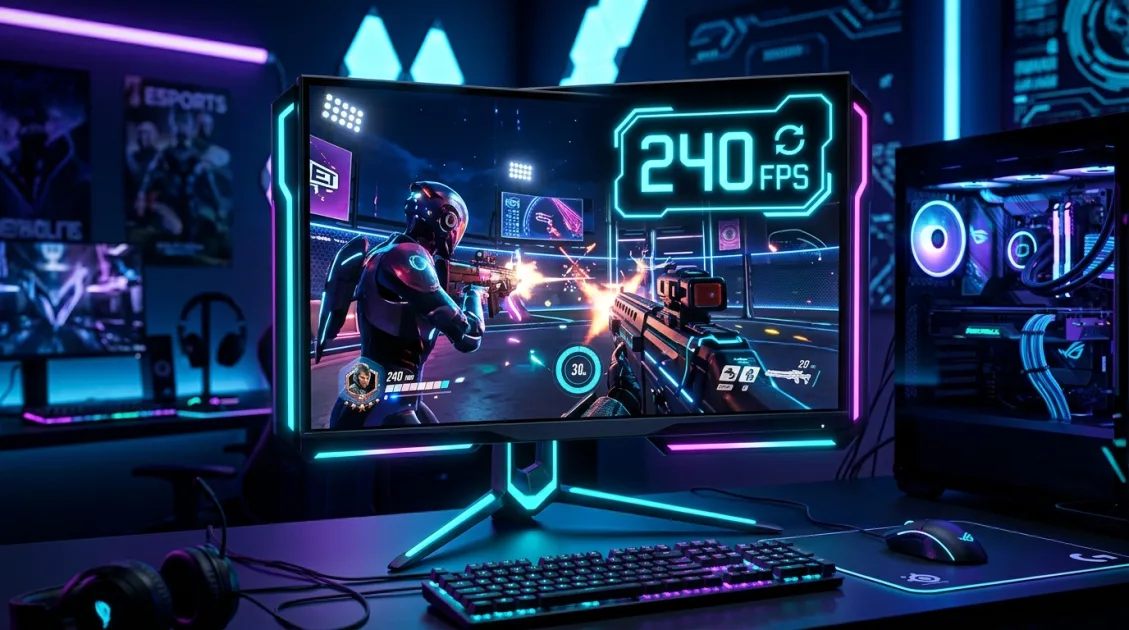
For more than a decade, the standard desktop client for Roblox has enforced a strict internal refresh limit of 60 frames per second. While a 60 FPS cap ensured baseline stability on entry-level hardware during the platform's early years, modern PC gaming hardware has evolved dramatically. Today, high-refresh-rate displays operating at 144Hz, 165Hz, 240Hz, and beyond are standard fixtures on gaming desks. Running a fast-paced competitive experience or an intricate physics-based simulation at 60 FPS on a 240Hz monitor introduces noticeable frame judder, uneven frame pacing, and sluggish input response.
This technical disparity led the gaming community to develop the Roblox FPS Unlocker, a lightweight utility engineered to override the engine's built-in frame cap safely. By modifying internal frame limiter variables directly in client memory without altering core game code or injecting malicious scripts, the unlocker allows hardware to deliver frames as quickly as the processor and graphics card can generate them.
Whether you want to eliminate input delay in competitive fighting games, achieve buttery-smooth movement in precision platformers, or simply take full advantage of your high-end gaming monitor, this comprehensive guide covers everything you need to know about setting up, configuring, and optimizing the Roblox FPS Unlocker for peak performance.
What Is the Roblox FPS Unlocker?
The Roblox FPS Unlocker (widely known in developer and player communities as rbxfpsunlocker) is an open-source background utility designed to disable the hardcoded frame rate limiter within the official 64-bit desktop client. Unlike heavy modification tools or cheat engines, the unlocker operates as an unobtrusive system tray application that monitors the active game process and adjusts the internal rendering loop target.
Under default operating conditions, the Roblox rendering engine executes an internal sleep command once 16.6 milliseconds have elapsed per frame cycle, artificially capping output to 60 FPS regardless of available system resources. The unlocker intercepts this sleep interval routine and adjusts the ceiling to match user-selected limits, such as 120, 144, 240, or completely uncapped rendering.
Importantly, the utility does not modify game files on disk, does not hook into network packets, and does not alter server-authoritative physics simulations. Because the application strictly adjusts client-side rendering frequencies, it remains fully compliant with standard fair-play policies and community safety guidelines.
Why Does Roblox Cap Frame Rates at 60 FPS by Default?
To understand why an external tool is so popular, it helps to examine the architectural choices behind the engine's default limitations. Several historical and cross-platform factors explain why the cap was implemented in the first place:
- Cross-Platform Parity: Roblox operates across a vast array of hardware ecosystems, including budget mobile smartphones, tablets, home consoles, low-spec laptops, and enthusiast gaming PCs. A uniform 60 FPS ceiling ensured consistent animation timing across disparate devices.
- Legacy Physics Calculations: Early iterations of the platform tied certain physical constraints, springs, and character momentum calculations directly to the render loop. While modern game architecture decouples physics ticks from visual rendering, conservative safety limits remained to prevent legacy experiences from behaving erratically.
- Thermal and Energy Management: On battery-powered portable computers and lower-tier office systems lacking dedicated cooling, unrestricted rendering loops can cause hardware to run at maximum thermal capacity unnecessarily, leading to fan noise and battery drain.
For modern desktop systems equipped with dedicated cooling and dedicated graphics cards, these constraints serve little purpose, making an unlocked frame rate a substantial visual and mechanical upgrade.
Key Benefits of Uncapping Your Frame Rate
Uncapping your frame rate delivers distinct competitive and ergonomic advantages that go far beyond superficial numbers on a diagnostic overlay.
1. Dramatically Reduced Input Latency
Input latency represents the delay between physically clicking your mouse or pressing a key and seeing the corresponding action reflected on your display. At 60 FPS, a new frame is drawn once every 16.67 milliseconds. When operating at 144 FPS, frame delivery time drops to 6.94 milliseconds, and at 240 FPS, it falls to a mere 4.16 milliseconds.
This substantial reduction in frame delivery intervals means your mouse cursor and camera movements register with immediate precision. In competitive shooter titles, sword-fighting arenas, and fast-paced dodge mechanics, reduced latency directly improves aim tracking and reaction times.
2. Fluid Motion and Visual Clarity
High frame rates eliminate the choppy, disjointed motion typical of rapid camera rotations at 60 FPS. Objects traveling quickly across the screen maintain sharp silhouettes rather than blurring into stepped visual artifacts. This clarity makes tracking moving opponents and navigating tight platforming jumps significantly easier on the eyes during prolonged gaming sessions.
3. Elimination of Frame Pacing Micro-Stutter
When a monitor operates at 144Hz but receives only 60 FPS from the graphics card, the display is forced to duplicate frames asynchronously. Some frames display for two refresh cycles while others display for three, creating a subtle visual stutter known as uneven frame pacing. Matching or exceeding your display's native refresh rate completely resolves this micro-stutter.
Performance Benchmark: 60 FPS vs. 144 FPS vs. 240 FPS
To illustrate the tangible benefits of uncapping your rendering engine, review the comparative technical benchmark metrics below:
| Performance Metric | Default 60 FPS Cap | 144 FPS Target | 240 FPS Target | Fully Uncapped |
|---|---|---|---|---|
| Frame Time Interval | 16.67 ms | 6.94 ms | 4.16 ms | Hardware Dependent (2–4 ms) |
| Input Response Delay | Baseline (Noticeable) | ~58% Reduction | ~75% Reduction | Lowest Possible |
| Display Synchronization | Causes Judder on >60Hz | Perfect for 144Hz Panels | Ideal for 240Hz Panels | High Sync Fluidity |
| GPU Utilization | Minimal (15–30%) | Moderate (45–65%) | High (70–90%) | Maximum (95–100%) |
| System Thermals | Extremely Cool | Low to Moderate | Moderate | Warm / Requires Good Cooling |
| Recommended Use Case | Low-end Laptops / Battery | Balanced Gaming Desktops | Esports & High Refresh PCs | Benchmarking Enthusiasts |
Step-by-Step Installation and Setup Guide
Installing and configuring the utility is straightforward and requires no complicated installers or system administrative privileges. Follow these verified steps to get up and running in minutes.
Step 1: Download the Verified Archive
Obtain the latest stable release of the utility packaged as a compressed ZIP file. The application is entirely standalone, requiring no installation wizard or registry modifications. Ensure you are downloading the 64-bit build, as the desktop client transitioned to a full 64-bit architecture to enhance memory addressing and security.
Step 2: Extract to a Dedicated Folder
Never run executable utilities directly from within a temporary archive preview. Right-click the downloaded ZIP folder and extract its contents to a permanent, easily accessible directory on your primary storage drive, such as:
C:\Tools\RobloxFPSUnlocker\Keeping the executable in an organized directory ensures that configuration settings, custom hotkeys, and log files remain stored neatly alongside the core binary.
Step 3: Launch the Executable Before Opening the Client
Double-click the extracted executable file. A compact command console will appear momentarily to initialize the memory search hooks before minimizing automatically to your Windows taskbar system tray (the notification area located near the digital clock in the bottom-right corner of your screen).
You can confirm the utility is active by checking for its dedicated tray icon. Right-clicking this icon opens the complete configuration menu.
Step 4: Launch Your Desired Experience
Open your web browser or desktop launcher and join any game experience. Once the client initializes, press Shift + F5 on your keyboard to reveal the built-in diagnostic overlay. The performance counter in the top-left corner will immediately register frame rates exceeding the traditional 60 FPS boundary, matching your configured target ceiling.
Configuring Optimal Settings for Stability and Smoothness
While allowing your system to render unconstrained frames might seem appealing, setting a strategic target frame cap often produces a noticeably smoother experience than running completely unrestricted.
Choosing the Right Frame Target
Right-click the system tray icon and navigate to the FPS Cap submenu. You will be presented with a range of standard preset values:
- Match Your Monitor Refresh Rate: If you use a 144Hz monitor, select 144 FPS. If you use a 240Hz monitor, select 240 FPS. Capping your frame rate exactly at your display's refresh frequency prevents unnecessary GPU power draw and heat generation while maintaining maximum visual clarity.
- Slightly Above Refresh Rate: Some competitive players prefer setting the cap one step higher than their display refresh (e.g., targeting 165 FPS on a 144Hz panel). This provides a minor reduction in input latency by ensuring the display always draws the absolute freshest frame buffer available.
- Custom Limits via Settings File: Inside the application directory, a small configuration file named
settings.iniallows you to define custom integer caps (such as 165, 280, or 360) if your specific monitor frequency is not listed in the default tray presets.
Recommended In-App Settings
To maintain peak stability across extended gaming sessions, ensure the following parameters are active within the right-click tray menu:
- Unlock Roblox Player: Enabled (ensures the standard desktop gaming client is unlocked).
- Unlock Roblox Studio: Optional (enable only if you are an experience developer building complex scenes who needs uncapped viewport previewing).
- Check for Updates: Enabled (notifies you whenever client engine changes require a patched memory offset).
- Silent Start: Enabled (prevents console pop-up windows upon system boot).
Native Uncap Feature vs. Third-Party FPS Unlocker
In recent updates, the development team introduced an experimental built-in frame rate selector inside the client's Escape settings menu. However, millions of gamers continue to rely on the dedicated third-party unlocker utility. The comparison below clarifies why the standalone tool remains the preferred choice for competitive enthusiasts:
| Feature / Capability | Built-in Client Setting | Dedicated FPS Unlocker |
|---|---|---|
| Maximum Frame Rate | Hard capped at 240 FPS | Truly Uncapped (360 FPS / Unlimited) |
| Custom Frame Targets | Rigid predefined steps only | Any custom integer via config file |
| Automatic Startup with Windows | Not supported | Supported via Startup folder |
| Studio Viewport Support | Inconsistent across builds | Full independent Studio unlock toggle |
| Memory Footprint | Integrated into client | Ultra-lightweight (~2 MB RAM usage) |
| Frame Pacing Consistency | Can fluctuate during asset streaming | Smooth external sleep cycle override |
Troubleshooting Common Errors and Issues
While the utility is remarkably reliable, occasional software conflicts or platform updates can cause unexpected behavior. Here are practical solutions to the most common issues players encounter.
Issue 1: Frame Rate Remains Stuck at 60 FPS
If your frame rate refuses to climb above 60 despite the unlocker running in your taskbar, check the following potential causes:
- Full-Screen Optimizations Conflict: Windows occasionally forces vertical synchronization on borderless windows. Press Alt + Enter to cycle between full-screen and windowed modes to reset the display presentation pipeline.
- Graphics Driver V-Sync Overrides: Open your graphics control panel (such as the NVIDIA Control Panel or AMD Radeon Software) and inspect the global 3D settings. Ensure that Vertical Sync is set to "Use the 3D application setting" or "Fast" rather than "Force On".
- Recent Client Engine Updates: When the client receives a major platform update, internal memory offsets can shift slightly. If this occurs, download the latest version of the unlocker to ensure compatibility with the updated client build.
Issue 2: Security Software Flagging the Executable
Because the utility inspects active memory addresses of another running program, heuristic behavioral scanners in certain antivirus programs may generate a false-positive detection. The official, verified build of the utility is completely benign and contains zero spyware or advertising bloat. To resolve this, simply add the application folder to your antivirus whitelist or exclusions directory.
Issue 3: Screen Tearing on Fixed-Refresh Monitors
Screen tearing occurs when your graphics card outputs frames at an interval that is out of sync with your display's physical refresh cycle, causing two distinct frames to display simultaneously across a horizontal seam. If you do not have a variable refresh rate monitor (G-Sync or FreeSync):
- Cap the frame rate at a stable integer that divides cleanly into your refresh rate.
- Enable Fast Sync (NVIDIA) or Enhanced Sync (AMD) in your driver control panel, which discards torn partial frames without introducing heavy latency penalties.
Is Using an FPS Unlocker Safe and Permitted?
A common concern among new users is whether running a background tool could result in account penalties or automated moderation bans. The short answer is: it is completely safe and officially acknowledged by the platform's leadership.
During official developer conferences and public address streams, platform executives explicitly stated that players would not be banned for unlocking their frame rates. The utility does not provide an unfair mechanical advantage such as wallhacks, speed hacks, or aimbot routines; it merely allows hardware to render visual frames at an accelerated rate.
Furthermore, the utility does not inject dynamic link libraries (DLLs) into client memory or modify game code files on your storage drive. Millions of players, content creators, and competitive streamers utilize the tool daily without incident.
Conclusion
The Roblox FPS Unlocker remains an essential quality-of-life utility for any PC gamer seeking to experience their favorite titles with maximum visual fluidness and instantaneous mouse responsiveness. By lifting the arbitrary 60 FPS restriction, the tool allows your hardware to perform at its true potential, transforming fast-moving action and competitive multiplayer games into silky-smooth experiences.
Setting up the utility takes less than two minutes, requires minimal system resources, and operates safely without violating community policies. For anyone gaming on a modern high-refresh display, unlocking your frame rate is one of the most effective upgrades you can make to your everyday play sessions.
Frequently Asked Questions (FAQ)
What is the primary purpose of the Roblox FPS Unlocker?
The primary purpose of the tool is to remove the hardcoded 60 frames per second limit in the official desktop client. This allows the game to take full advantage of high-refresh-rate monitors (144Hz, 240Hz, 360Hz) and significantly reduces input lag during fast gameplay.
Can you get banned for using an FPS unlocker?
No. Platform leadership has officially confirmed that using an FPS unlocker to uncap frame rates is completely permitted and will not result in moderation bans or account suspensions. It is recognized as a quality-of-life performance tool rather than an exploit.
Does uncapping frames make your PC run hotter?
Rendering more frames per second naturally demands more computational power from your graphics card and processor. On a capable desktop computer with standard cooling, temperature increases are minimal and well within safe operational thresholds. On laptops, setting a reasonable cap (such as 120 or 144 FPS) balances smooth visuals with cool thermals.
Why is my game still capped at 60 FPS after launching the tool?
This usually occurs if your graphics driver forces Vertical Sync globally, if the game is running in an incompatible display mode, or if a recent game client update shifted memory offsets. Ensure the unlocker tray icon is active, verify that V-Sync is set to application-controlled in your graphics control panel, and press Shift + F5 in-game to verify your live frame rate.
Do I need to keep the unlocker running while playing?
Yes. The utility functions as an active background process in your Windows system tray. If you close the application completely, the client will revert to its default 60 FPS ceiling upon the next map transition or restart.
Can I use the unlocker on mobile devices or consoles?
No. The standalone unlocker executable is designed exclusively for 64-bit Windows operating systems running the official desktop client. Mobile platforms (iOS and Android) and gaming consoles manage refresh rates directly through system hardware policies.
What is the recommended frame cap setting for competitive games?
For the best balance of ultra-low input latency and consistent frame pacing, set the cap to match your monitor's native refresh rate (for example, 144 FPS for a 144Hz screen, or 240 FPS for a 240Hz screen). This ensures maximum smoothness without causing unnecessary hardware strain.